

The best website builder for Mac depends on where you want to work. A browser-based service lets you edit and publish without installing a macOS app. A desktop builder keeps the design project on your Mac and can give you more control over the files you publish. Neither approach automatically makes the better website.
I would start with Wix for a flexible business website, Hostinger Website Builder for a straightforward site with a lower introductory cost, or SITE123 for a guided setup. For a Mac application, I would compare Blocs and RapidWeaver Elements; Mobirise is another option if you prefer assembling pages from blocks. WordPress.org deserves a separate place for sites built around regular publishing.
Compare the Website Builders for Mac
These options cover different jobs. The first four are edited through a browser; the last three include desktop software. I would choose the workflow before comparing template galleries.
| Builder | Where you edit | I would choose it for | Before committing |
|---|---|---|---|
| Wix | Browser | Business pages with bookings, content or sales | Match the plan and apps to the features you need |
| Hostinger | Browser | A focused business site or small store | Compare the upfront payment and renewal |
| SITE123 | Browser | A small site with a guided editing process | Try the layout and page structure first |
| WordPress.org | Browser, on your hosting | Articles and an expanding content library | Assign responsibility for updates and backups |
| Blocs | Mac application | Visual design with your own publishing setup | A paid licence is needed for export |
| RapidWeaver Elements | Mac application | Reusable layouts and detailed visual control | Check the edition and macOS requirements |
| Mobirise | Desktop application | Block-based pages published to your own server | Budget for any required extensions |
Browser Builders and WordPress on a Mac
You do not need special Mac software to use an online website builder. The editing interface runs in a supported browser, while the website runs on the provider’s servers. This is particularly convenient if you use a Mac at home but sometimes need to edit from another computer.
1. Wix: Flexible Business Websites

| Workflow | Online visual editor |
|---|---|
| Best for | Business sites with room to grow |
| Design | Templates and visual customization |
| Business tools | Bookings, stores and apps |
| Free option | Wix address and branding |
| Paid plan | Own domain; features vary by tier |
Wix is my first choice here when the website needs to do more than display a few pages. A service business might need an enquiry form today and appointment scheduling later. Keeping those functions in one platform can be easier than connecting a desktop design tool to several separate services.
The visual approach also suits people who want to arrange their own pages. That freedom brings decisions: spacing, mobile layouts, navigation and image sizes still need attention. I would begin with a template close to the intended structure, then adapt it to the real content rather than moving every element immediately.
Use the free version to check the editor and a representative page. Before upgrading, check the plan features for payments, bookings and any paid apps. A personal portfolio and an appointment-based business do not need the same package. My Wix review explains the editing options and business tools in more detail.
2. Hostinger Website Builder: A Focused Site Without a Complicated Setup

| Workflow | Online visual builder |
|---|---|
| Best for | Small business pages and stores |
| Starting point | AI-assisted setup or templates |
| Publishing | Managed within Hostinger |
| Cost model | Subscription; term affects price |
| Compare | Initial payment and renewal |
Hostinger Website Builder is worth considering if you want a clear route from an initial idea to a business website. It suits a site with a manageable set of pages: services, examples of work, an introduction and a way to contact you. AI assistance can help produce a starting structure, but I would replace generic claims and check every business detail before publishing.
I would choose it for a project whose needs are already reasonably clear. List the store, form, language or integration requirements first, then confirm that the builder handles them. An attractive subscription offer is less useful if a necessary function requires a different platform.
Compare the total billed upfront with the renewal amount, not just the advertised monthly equivalent. Also keep the products separate: using Hostinger’s builder is different from running WordPress on Hostinger hosting. The former manages the website through its own editing system; the latter uses WordPress themes and plugins. My Hostinger builder review covers the product previously known as Zyro.
3. SITE123: Guided Editing for a Small Website
| Workflow | Guided online editor |
|---|---|
| Best for | Small sites you maintain yourself |
| Layout | Structured pages and sections |
| Free address | SITE123 subdomain |
| Free allowance | 250 MB storage and bandwidth |
| Own domain | Paid package |
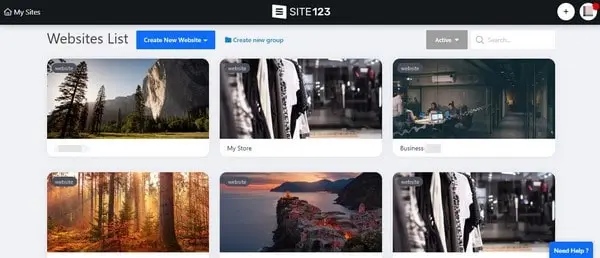
SITE123 suits someone who wants help making the layout decisions. Its structured editing approach keeps the work focused on the information a visitor needs: what you offer, where you work, opening details, photographs and contact options. I would consider it for a local service, a personal introduction or a compact business website.
The benefit is a more guided route through the setup. If you already have a detailed custom layout in mind, try reproducing one important page before choosing a package. The right question is whether the available structure presents your content clearly, not how many individual objects can be moved.
The free plan includes a subdomain and 250 MB each of storage and bandwidth, with no trial expiry. A paid package is needed for your own domain. Keep images appropriately sized and use the free version to build a useful first draft. My SITE123 review explains where the guided workflow is most helpful.
4. WordPress.org: A Site Built Around Content

| Workflow | Browser-based CMS |
|---|---|
| Best for | Blogs and expanding content sites |
| Editing | Blocks, themes and plugins |
| Software | Free and open source |
| Ongoing costs | Hosting, domain and optional tools |
| Responsibility | Updates, backups and security |
WordPress.org is a content management system installed on a web server. You normally edit it through a browser on your Mac. It is not a native macOS website builder, and it is different from the hosted WordPress.com service.
I would choose it for a site expected to accumulate articles, categories, contributors or a substantial resource library. Themes establish the design; the block editor handles page and article content; plugins add functions. You can build and maintain many sites without writing code. Development becomes relevant when the requirements move beyond the selected theme and tools.
The trade-off is responsibility. Someone must keep the installation and extensions current, maintain backups and deal with problems between components. Managed hosting can handle part of that work, but it does not remove the need to choose tools carefully. Start with the essential functions rather than installing a plugin for every possible future idea. My WordPress review explains the publishing workflow and ownership considerations.
Mac and Desktop Website Builder Apps
A desktop builder makes sense when you want the editable design project on your computer and prefer arranging the site in an application. You will still need a publishing destination. A contact form, checkout or content management feature may also require a server component or an external service.
5. Blocs: Visual Website Design in a Mac App

| Workflow | Native Mac application |
|---|---|
| Best for | Custom brochure and portfolio sites |
| Output | Website files for your server |
| Free version | Build projects; no publishing |
| Paid licence | Standard or Plus; one-off purchase |
| Upgrade choice | Plus adds WordPress theme creation |
Blocs is the option I would shortlist for a Mac user who wants to shape a website visually and publish it to a chosen server. The main appeal is working directly with page structure and styling in a desktop interface. This suits a portfolio, a studio website or a business presentation where the layout matters and the owner is comfortable managing publication.
Its licence options need attention: the free version allows project building, while Standard unlocks export and publishing. Plus adds capabilities including WordPress theme creation. Current-major-version updates are included; moving to another major version can involve a paid upgrade. Checkout prices can include location-dependent tax.
I would decide who will make routine edits before choosing this workflow. If another person expects to sign into a browser and publish articles, plan that editing system rather than assuming exported pages provide it. Read my Blocs review for the design workflow and the differences between standard site export and WordPress work.
6. RapidWeaver Elements: A Native Mac Design Workflow

| Workflow | Native macOS application |
|---|---|
| Best for | Reusable, individually designed layouts |
| Publishing | Export or publish to your server |
| Compatibility | macOS 13.7.8 or newer; Intel or Apple silicon |
| Free trial | Up to 3 pages; no export or publishing |
| Base licence | US$99/year for app updates |
RapidWeaver Elements offers a visual Mac editor with reusable components and control over page structure. I would consider it if you enjoy developing a consistent design across a site and want to keep a desktop project. That workflow rewards time spent understanding how the layout is assembled.
Do not treat Elements and RapidWeaver Classic as interchangeable names. If you already own a Classic project or third-party add-ons, review the switching guidance before planning a move. Choosing a new builder and maintaining an existing project are different decisions.
The Base licence is listed at US$99 with annual renewal for updates. The covered app version remains usable if you cancel. For client work, compare the higher licences and their resale rights. I would use the trial to build the hardest page first; it does not allow export or publication.
7. Mobirise: Assemble Pages From Ready-Made Blocks

| Workflow | Desktop block editor |
|---|---|
| Best for | Landing pages and compact sites |
| Mac download | Apple silicon and Intel options |
| Publishing | Local files or supported upload options |
| Free option | Basic desktop software |
| Extra costs | Extensions, themes and publishing services |
Mobirise is a practical candidate if you prefer choosing a prepared section and adapting its text and images. That is a different starting point from designing each layout detail yourself. I would use it for a landing page, an event presentation or a compact business site whose structure fits the available blocks.
The desktop software offers local publication, which lets you take the generated files to your own server. Its online AI product is a separate workflow, so check which product and package you are selecting. Internet-dependent services remain internet-dependent even when the page project is stored locally.
Try the actual blocks and extensions the project needs before buying a bundle. A large library is useful only if it contains layouts you can adapt and functions you can maintain. Keep the editable project and its assets as well as the published files. My Mobirise review covers desktop editing, AI and export in more detail.
Publishing, Hosting and Mac Compatibility
Building on a Mac does not mean hosting the website on a Mac. With Wix, Hostinger Website Builder and SITE123, publication is managed inside the service. With WordPress.org, the CMS runs on your hosting. With a desktop builder, you generally publish generated files to a server or connect another supported publishing service.
I would make these checks before spending time on a full design:
- Your exact Mac: confirm the current installer supports your macOS version and processor. For example, Elements lists macOS 13.7.8 or newer and both Intel and Apple silicon. An older Mac that cannot run the required OS may need a different tool.
- Your editing browser: use a supported, updated browser for online builders. Check the real editor on your machine; being able to view the finished website is not the same as being able to edit it.
- The mobile result: preview narrow screens, then open the published site on a phone. Check menus, image crops, text and forms rather than relying on the desktop canvas.
- The next editor: decide whether future changes will be made in the original desktop project, a CMS or the hosted builder. Give that person the right access and an understandable editing process.
Keep source projects separate from publication backups. A folder of exported HTML can restore the live pages, but it does not necessarily restore the builder’s editable project. My guide to offline website builders explores that distinction for desktop workflows.
Costs and Free Website Building on a Mac
There is no single meaningful “Mac website builder price.” Compare the cost of keeping your intended website running, including the features and editing workflow it needs.
- Hosted builders: budget for the subscription, domain renewal and any paid apps. Check whether an advertised monthly figure requires a long upfront term and whether the next renewal is higher.
- WordPress.org: the software is free. Hosting and a domain cost extra; a premium theme, plugins or maintenance help may add recurring charges.
- Desktop apps: count the licence or update subscription, any extensions, hosting and domain. Owning an app does not pay the server bill.
- Free versions: distinguish public publishing on a branded address from a trial that only lets you build a project. Wix and SITE123 offer free hosted starting points; Blocs and Elements require a paid licence for the publishing step. Mobirise’s basic desktop option can be used with a separate publishing setup.
For a first business site, I would compare the first two years of total payments. For a desktop project, I would also check what happens if I stop renewing: continued editing, new operating-system support and optional services may follow different rules.
Which Website Builder Would I Choose for a Mac?
For most small business owners, I would begin with a browser builder. Wix is the broadest starting point in this selection; Hostinger suits a more focused project and SITE123 suits someone who values guided decisions. Choose WordPress when regular publishing and an expanding content structure are central to the plan.
If working in a Mac application is part of the goal, compare Blocs and RapidWeaver Elements with one real page. Choose Mobirise if its prepared blocks match the site you want. I would not buy a desktop app simply because the computer is a Mac: the deciding factor is how you want to design, publish and maintain the website.
Before committing, build a page with your own text and photographs, check its mobile version, test the contact route and calculate the ongoing cost. That small exercise will tell you more about the fit than a long feature list.


